How to uninstall Last Windows Update? A Simple Guide.
Have you ever installed a Windows update only to find your PC acting up soon after? It’s a common issue. While updates bring new features and security fixes, they sometimes introduce bugs or conflicts that disrupt your workflow. When that happens, uninstalling the troublesome update may be the quickest fix.
Recently, the Windows update KB5063878 has been causing notable headaches. Let’s understand what’s going on, and then walk through easy ways to uninstall problematic Windows updates – including this one.
Understanding the KB5063878 Issue
Released in August 2025, the KB5063878 update targeted Windows 11 version 24H2, aiming to improve system security and stability. However, shortly after release, users reported serious storage problems. The update caused certain Solid State Drives (SSDs) to “vanish” or show partitions as RAW, effectively making data inaccessible both in Windows and even in BIOS. This occurred especially during heavy write workload scenarios, such as installing large game patches.
These symptoms hint at a critical bug that leads to SSD data corruption or failure, a serious issue that Microsoft acknowledged and began investigating with hardware partners. If your system started behaving unpredictably, shutting down randomly, or missing SSD drives after this update, it might be the culprit.
Fortunately, uninstalling the update can help restore normal system function until a fix is released.
How to Uninstall the Last Windows Update
There are several straightforward ways to remove the latest Windows update safely. Here are three common methods:
1. Uninstall via Windows Settings
There are several straightforward ways to remove the latest Windows update safely. Here are three common methods:
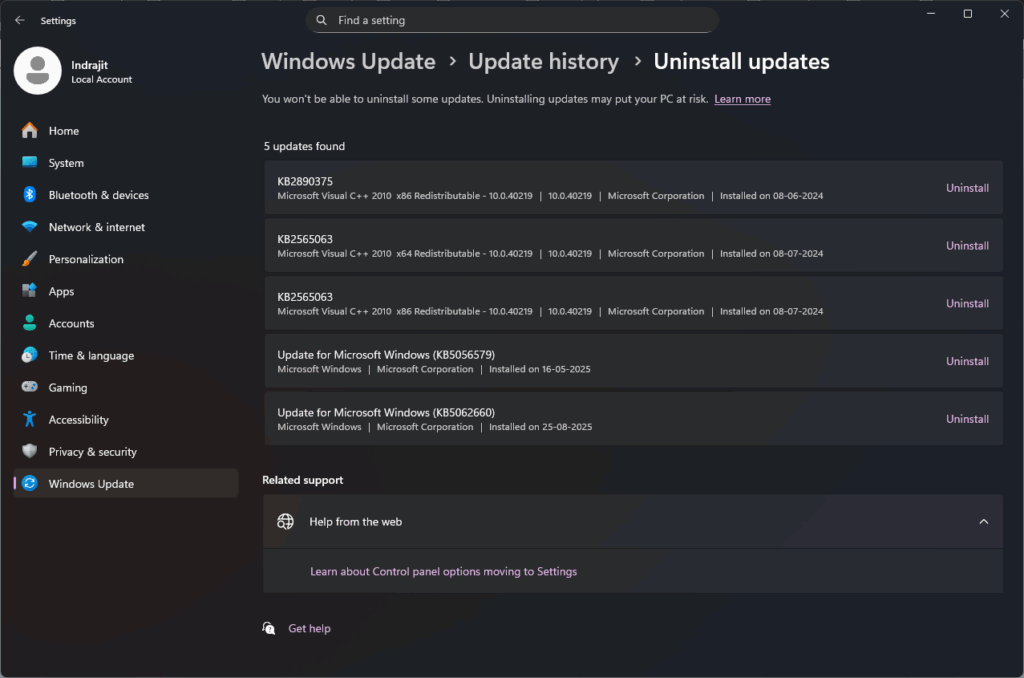
- Open Settings (press Win + I).
- Go to Windows Update > Update History.
- Scroll down and click Uninstall updates under Related Settings.
- This opens the Control Panel listing all installed updates.
- Find the most recent update (like KB5063878)
- Click Uninstall.
- Follow any on-screen prompts and restart your PC once done.
This graphical interface method is simple and works well for most users.
2. Uninstall Using Command Prompt
If the Settings app method doesn’t work, or you prefer using commands, try this:
- Open Command Prompt as Administrator.
- View installed updates type:
wmic qfe list brief /format:table- Identify the KB number.
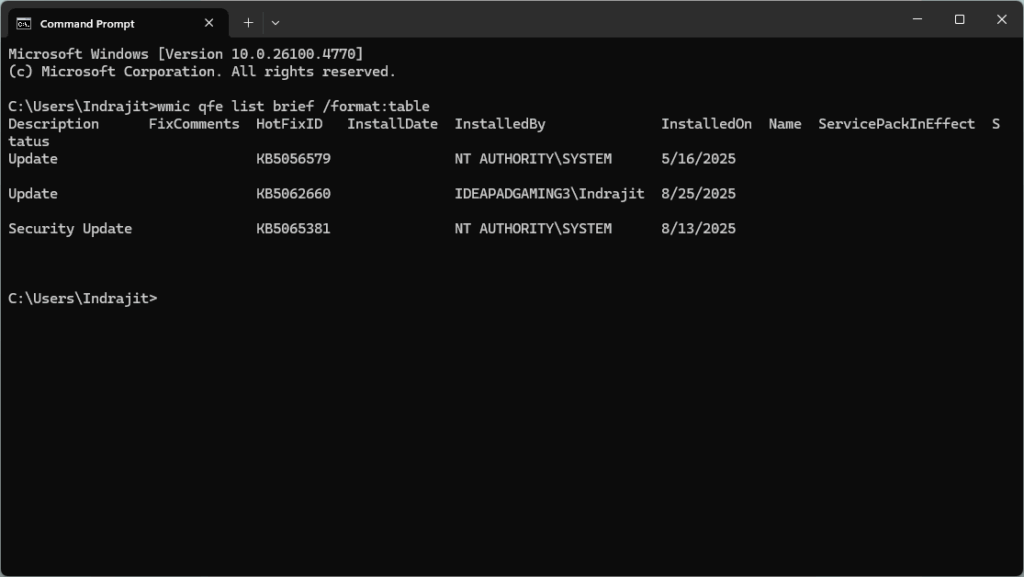
- Identify the KB number and run
wusa /uninstall /kb:[KBnumber] (e.g. wusa /uninstall /kb:5063878)- Follow prompts and restart if required.
This method is handy for advanced users or when Settings is unresponsive.
Why It’s Important to Know How to Uninstall Last Windows Update
Windows updates are critical, but not all play nice with existing setups. Being able to uninstall Last Windows Update yourself saves time and headaches. Especially for IT professionals or anyone relying on a stable PC for work, knowing these steps is empowering.
The KB5063878 incident highlights how even well-intentioned patches can have unintended consequences. Until Microsoft releases a fix, uninstalling the update is the best way to protect your data and system performance.
Conclusion:
If your PC started acting weird right after a Windows update, don’t panic. Whether it’s the recent KB5063878 or another update, you can usually fix the issue by uninstalling the update via Settings or Command Prompt. And if that doesn’t work, system restore and troubleshooting tools can help you regain control.
Updates are vital, but so is your productivity and data safety. So take charge, know these steps on uninstall Last Windows Update, and share this knowledge with colleagues who might benefit.
About Nurture IT
Nurture IT, one of the leading IT service providers in Bangalore offers customized scalable technology solutions specifically designed for our client’s unique needs.
As a preferred partner to technology leaders like Lenovo, Dell, Apple, HP, Asus, Tata, Google, Microsoft, Cisco, Sophos, Jamf, Soti, Fortinet, Poly, Octa, Seclore, Seqrite we deploy the most advanced business technology solutions to ensure optimal reliability, productivity, and value.
Our B2B branch, Nurture IT, adeptly serves corporate and scaling-up demands. Conversely, for those not anticipating immediate growth, our Retail division – Laptop World caters to your specific needs. Make an informed choice aligned with your organizational trajectory and immediate necessities.